Frequently asked questions
What does the AI actually do?
It outpaints: the AI studies your photo's content, lighting and style, then generates new pixels around the edges to fill the larger canvas. Your original photo is never altered or cropped.
What does the Sharpen tool do?
It reconstructs pixelated, blurry or soft photos with AI. 1× cleans up at the original size, 2× / 4× enlarge while rebuilding detail. One honest note: detail is re-imagined, not recovered — the AI invents plausible sharpness, it can't bring back what was never captured. 1 credit per photo, from the same wallet as Extend.
What does the Unblur tool do?
It reverses blur — camera shake, missed focus, motion smear — using a dedicated deblurring AI (not just edge sharpening). Same size in, same size out, 1 credit per photo. Honest note: it recovers a lot, but a photo that's extremely blurred has no detail left to recover — the before/after slider on every result shows you exactly what changed.
How do credits work?
1 credit = 1 AI job — one Extend, one Sharpen or one Unblur. You start with 1 free trial credit. When you run out, buy more with PayPal or card — $5 → 50 credits, $10 → 100 credits, $15 → 150 credits. You'll get a single-use code, paste it in, and the credits land in your secure wallet on our server. No account, no subscription, no card stored anywhere.
How do I keep my purchase code safe?
Take a picture or screenshot of your code the moment you receive it, and keep it until all its credits are spent. The code is single-use and lives on our server — it works even if you clear your browser, and you can redeem it on any device.
What if I switch phones or browsers?
If you haven't redeemed your code yet, just redeem it on the new device — that's the easiest move. But once a code is redeemed, the remaining balance lives in that browser's wallet (there's no account to transfer it with), so redeem on the device you plan to keep using.
Do my photos get stored?
No. Your image is sent to the AI provider for the few seconds of processing, then discarded. Nothing is kept on our servers.
What sizes work best?
Modest expansions (e.g. 4:3 → 16:9) look the most natural. Extreme flips (square → tall 9:16) work but give the AI a lot of canvas to invent — results vary.
Is there a subscription?
No — JSM Enhance is strictly pay-per-use. Buy credits when you need them, use them whenever. Nothing renews, nothing is charged automatically.
Do credits expire?
Never. Your balance stays in your wallet until you spend it, whether that's tomorrow or next year.
What if the AI fails to generate?
You keep your credit. Failed generations are refunded automatically — you only ever pay for images you actually receive.
Why don't I need an account?
Your single-use purchase code is your receipt. Paste it in, the credits land in your browser's wallet, and that's it. Fewer accounts, fewer passwords, less of your data floating around. Just remember the wallet lives in that browser — keep your code screenshot until the credits are spent.
Can I add text to my image?
Yes — the ✏ Text tab (marked Free) is a full text studio: add as many text lines as you want, each one an independent layer with its own font (31 popular Google Fonts), size, color, position, rotation and style. Edit fullscreen, drag text right on the image, and it's burned into the final download. Adding text is always free; you only spend a credit when you also run Extend, Sharpen or Unblur.
AI photo enhancement guides
Short, practical explainers on getting the most out of each tool — what the AI actually does, when to use which one, and how creators fit them into real work.
What is AI image extending (outpainting)?
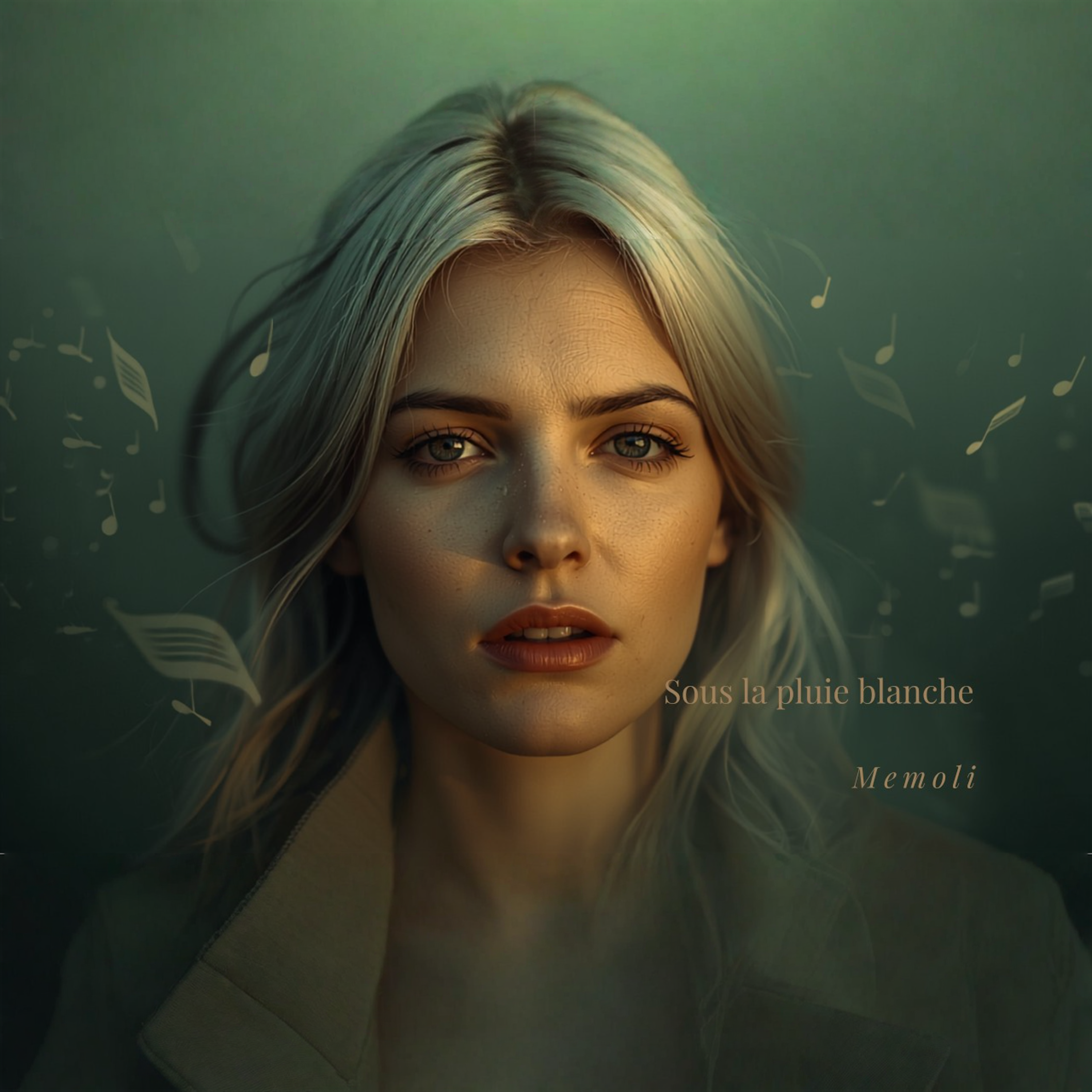
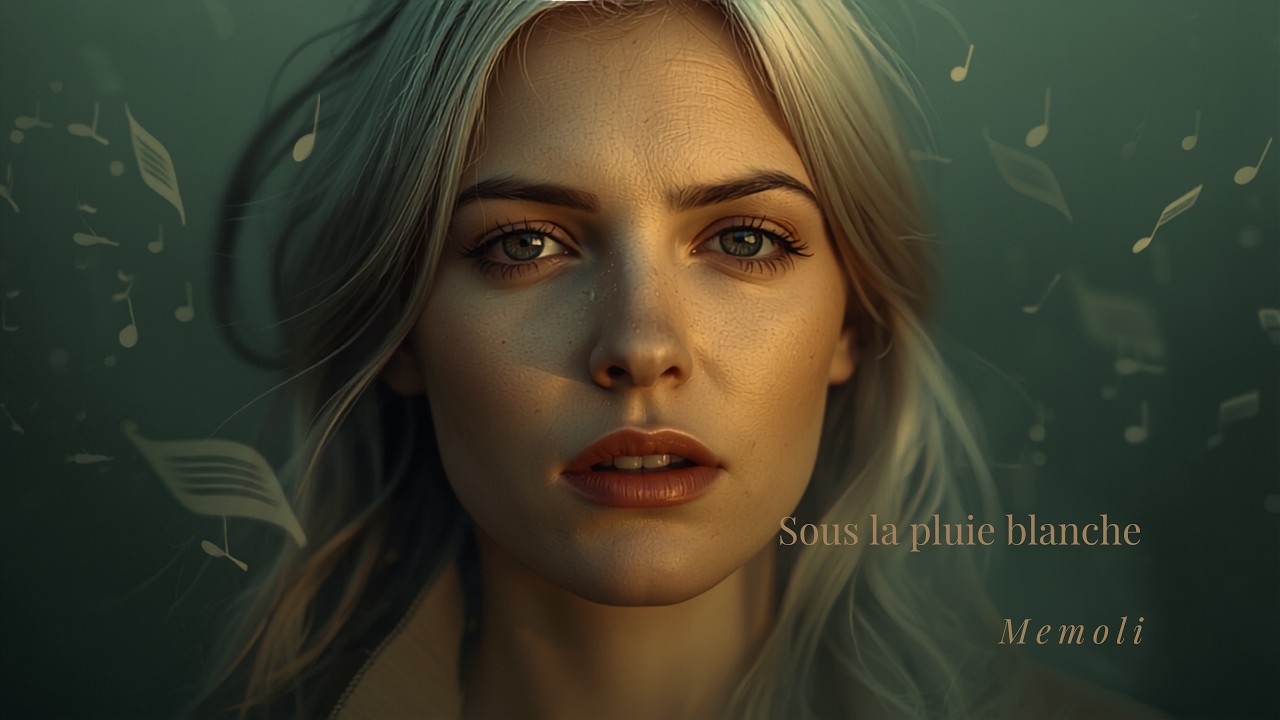
AI image extending — also called outpainting or uncropping — is the opposite of cropping. Instead of cutting pixels away, the AI studies your photo's content, lighting, colors and style, then generates brand-new pixels beyond the original edges to fill a larger canvas.
A classic example: you have a square product photo but need a 16:9 YouTube thumbnail. A basic editor would stretch it (distortion) or leave empty bars. An AI image extender paints the missing sides — continuing the background, the sunset, the room — so the result looks like the photo was always that wide.
JSM Enhance's Extend tool works exactly this way. Upload any JPG, PNG or WebP, pick a target size — a preset like YouTube 1920×1080 or anything custom up to 4096px — and optionally describe the scene ("sunny beach with palm trees") to guide the AI. Your original photo is never altered, cropped or stretched: the AI only invents the new areas around it.
Two tips for the best results: keep expansions modest (4:3 → 16:9 looks more natural than square → tall 9:16, which asks the AI to invent a lot of canvas), and use the description box — a few words about the scene dramatically improve coherence.
Sharpen vs. Unblur: which AI tool fixes your photo?
Blurry photos come in two flavors, and they need different AI.
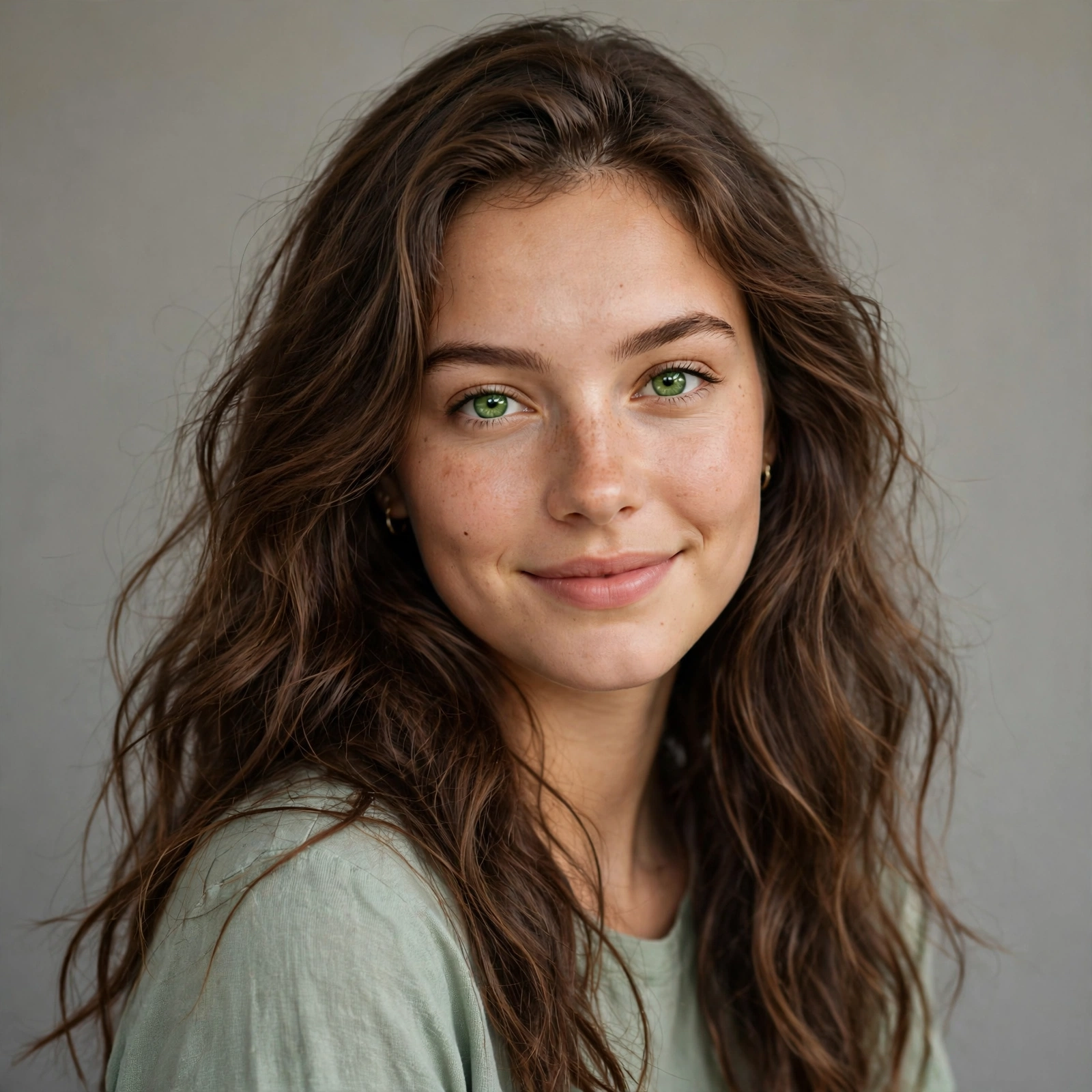
Choose Sharpen when your photo is pixelated, low-resolution or just soft — an old thumbnail, a heavily compressed chat image, a screenshot you want to print. Sharpen reconstructs detail with AI: 1× cleans up at the original size, 2× and 4× upscale while rebuilding sharpness (a true AI image upscaler). One honest note: the detail is re-imagined, not recovered — the AI invents plausible sharpness; it can't bring back what was never captured.
Choose Unblur when your photo suffers from motion blur or missed focus — camera shake, a moving subject, a slightly out-of-focus shot. Unblur uses a dedicated deblurring AI that mathematically reverses blur (not just edge contrast like a basic "sharpen" filter). Same size in, same size out.
Not sure? Try Sharpen first for small or soft images, Unblur first for shaky ones. Every result comes with a draggable before/after slider, so you can judge exactly what changed before you download.
5 ways creators use an AI image extender
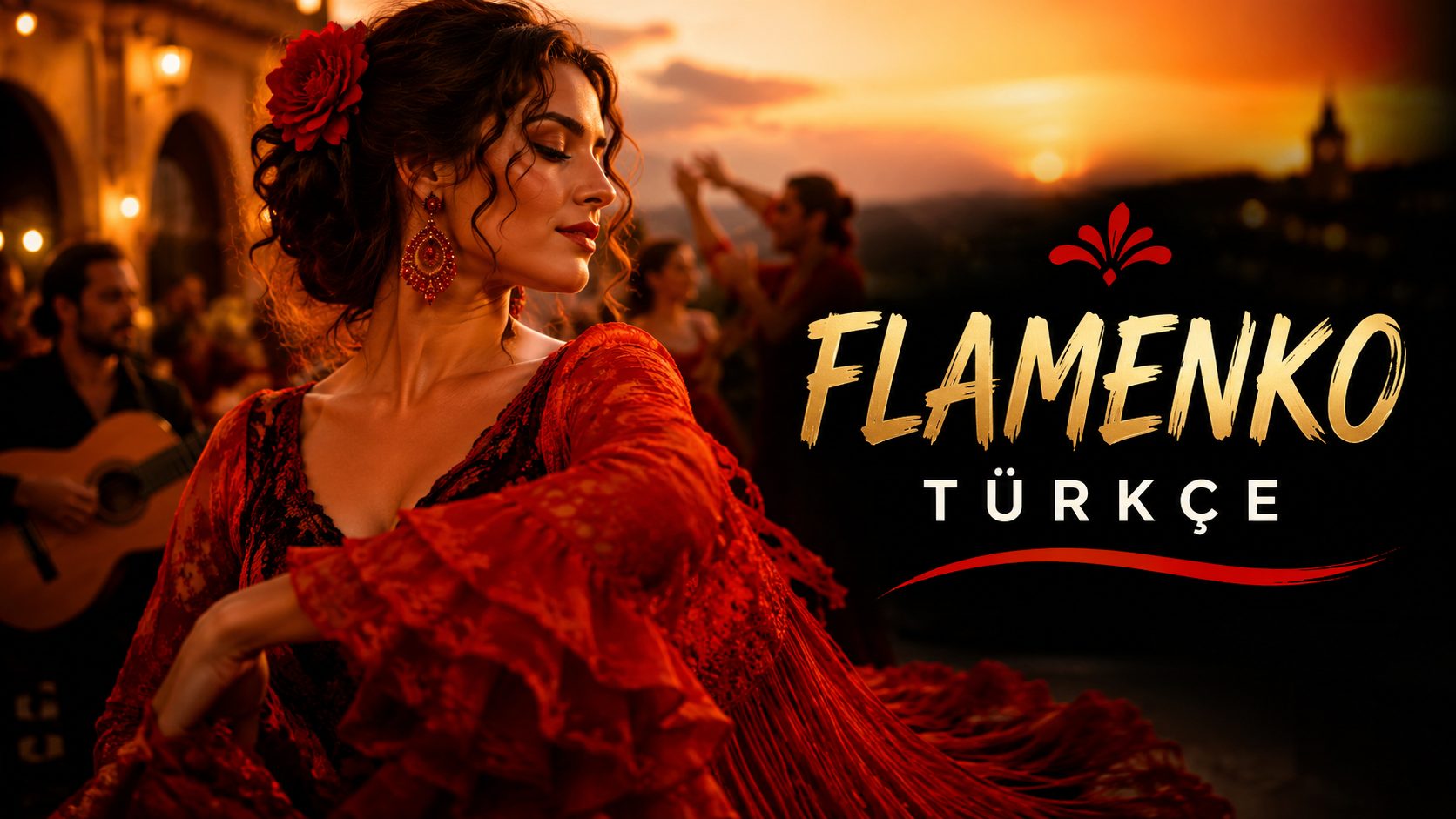
1. YouTube thumbnails. Shot a great square photo but need 1280×720? Extend it — the AI paints the sides to fit YouTube's 16:9 player perfectly, like the flamenco thumbnail in our demo above.
2. Product photos. Turn a tight product crop into a wide lifestyle banner for your shop or ads, with the background continuing naturally instead of awkward empty space.
3. Real-estate listings. Convert vertical phone shots into wide photos that fill property portals — no more cropped-out rooms.
4. Social repurposing. One shoot, every format: extend a portrait post into a landscape cover, or a story frame into a feed post, without reshooting.
5. Prints & wallpapers. Extend a favorite photo to fill a poster aspect ratio instead of cropping out the good parts.
Pair Extend with the free Text studio to burn titles, prices or watermarks right onto the finished image — then download and post.
 BEFORE
AFTER
BEFORE
AFTER